You’re standing on the field, drone ready to fly, but your FPV goggles show nothing but static snow. This frustrating scenario happens to every pilot when the connection between goggles and drone fails. Unlike radio controllers that require binding, connecting FPV goggles to your drone involves frequency matching and proper configuration of your video transmission system. Whether you’re using analog or digital FPV equipment, this guide will walk you through the exact steps to establish that crystal-clear video link you need for immersive flying. You’ll learn the specific procedures for different systems, troubleshoot common connection problems, and optimize your setup for reliable performance every time you fly.
Understanding how to connect goggles to drone properly makes the difference between smooth flying sessions and constant frustration. The process varies significantly between analog systems (which don’t require binding) and digital systems like DJI, HDZero, or Walksnail that need specific pairing procedures. By the end of this guide, you’ll be able to confidently set up any FPV system and diagnose connection issues before they ruin your flight time.
Essential Pre-Flight Checks Before Connecting Your Goggles
Before you even power on your equipment, complete these critical checks to prevent the most common connection failures. Skipping these simple steps causes most “no signal” issues that frustrate new pilots.
Charge Both Goggles and Drone Batteries Fully
Low power is the silent killer of FPV connections. Ensure both your goggles and drone have fully charged batteries before attempting to connect. A weak battery in either component can cause intermittent video dropouts or complete signal loss mid-flight. For analog systems, low power often manifests as increasing video static as the battery drains. Digital systems may suddenly disconnect when voltage drops below threshold levels. Always power on your goggles first, then your drone—reversing this sequence can cause signal interference during startup.
Secure All Antenna Connections Before Powering On
Loose or damaged antennas account for over 60% of FPV connection problems. Before powering up, physically inspect both ends of your antenna connections. On the drone, verify the VTx (video transmitter) antenna is tightly screwed into its SMA or RP-SMA connector—not just resting loosely. On your goggles, ensure receiver antennas are fully seated and undamaged. Pay special attention to the tiny center pin inside the connector; if bent or broken, it won’t make proper contact. For digital systems like DJI, even slightly loose antennas can prevent successful binding. Never power on your equipment with antennas disconnected, as this can damage the VTx.
Confirm Your Drone’s VTx Settings in Betaflight
Your flight controller’s configuration determines what frequency your drone transmits on. Access Betaflight (or your specific flight controller software) to verify your VTx settings before attempting connection. Check that the channel, band, and power level match what you intend to use. Many pilots accidentally leave their VTx in “Pit Mode” (a low-power setting for bench testing) which severely limits range. Ensure your VTx power is set appropriately—25mW for indoor/familiar areas, 200-600mW for standard flying. Also confirm your VTx protocol (SmartAudio, Tramp, etc.) matches what your goggles support.
Connect Analog FPV Systems Without Binding Procedures
Analog FPV systems dominate the hobby for good reason—they’re simple, reliable, and don’t require complex binding processes. Instead, you simply match frequencies between your drone’s transmitter and goggles’ receiver.
Match Your Goggles to the Exact VTx Channel Manually
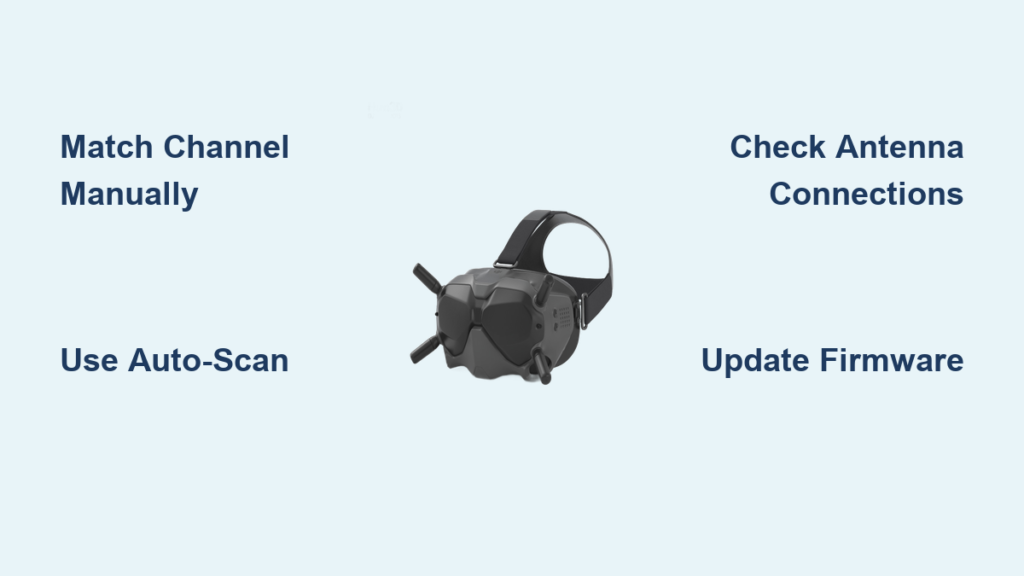
Unlike digital systems, analog FPV doesn’t use pairing—it’s pure frequency matching. Locate your drone’s VTx channel setting in Betaflight (typically labeled as Raceband R1-R8, Fatshark A1-A8, or ImmersionRC F1-F8). Then, on your goggles, manually navigate to the matching channel and band. For example, if your drone transmits on Raceband R3 (5732MHz), select Raceband 3 on your goggles. Many pilots fail by selecting the correct band but wrong channel number. The most reliable method is to note the exact frequency (like 5732MHz) and match it precisely on both ends.
Use Auto-Scan Function for Quick Channel Detection
Most modern FPV goggles include an auto-scan feature that automatically searches for active video signals. While convenient, this function has limitations. In crowded flying areas with multiple pilots, auto-scan might lock onto someone else’s signal instead of yours. It’s best used when flying solo or to initially detect your signal before switching to manual channel selection. To use it: power on goggles first, then drone, and activate auto-scan through your goggles’ menu. The goggles will cycle through channels until they find an active signal, then lock onto it. Once locked, note the channel for future reference.
Understand the 5.8GHz Frequency Band Structure

The 5.8GHz band contains multiple channel sets with specific frequencies. Familiarize yourself with these to avoid interference:
– Raceband (R1-R8): 5658-5917MHz – Most popular for racing
– Band F (Fatshark): 5740-5820MHz – Common on older goggles
– Band E (ImmersionRC): 5705-5945MHz – Eight channels (F1-F8)
– IMD6C/IMD6: 40 channels across the entire band
When connecting goggles to drone, always select channels with sufficient separation from other pilots—minimum two channels apart to prevent interference. At organized events, follow the frequency coordinator’s channel assignments strictly.
Digital FPV Binding Procedures for DJI, HDZero, and Walksnail
Digital systems like DJI, HDZero, and Walksnail require actual binding procedures to establish a secure digital connection between goggles and drone, unlike simple frequency matching in analog systems.
DJI Digital FPV Binding: Complete the Digital Handshake
DJI systems require specific binding steps to create the digital handshake between goggles and air unit. First, power on your DJI goggles, then power on the drone with its Air Unit. For new connections, navigate to the goggles’ settings menu, select “Link Management,” then “Bind New Device.” You’ll need to activate bind mode on the Air Unit by pressing and holding its bind button (usually a small recessed button) for 5 seconds until the LED flashes rapidly. The goggles will detect the Air Unit and complete binding automatically. After binding, both devices must remain powered for 30 seconds to finalize the connection. Check that your goggles display “Connected” in the status bar.
HDZero and Walksnail Binding Procedures for Clear HD Video
HDZero and Walksnail systems use similar but distinct binding methods. For HDZero: power on goggles first, then put the drone’s VTx module into bind mode by pressing its bind button for 3 seconds. The goggles should automatically detect the module and display a pairing prompt—confirm to complete binding. Walksnail systems require accessing the “Link” menu on your goggles, then putting the drone’s Avatar module into bind mode (usually by holding a button during power-up). The goggles will search for available modules and display them for selection. Select your module and confirm binding. Both systems will indicate successful binding with an on-screen message and solid status LED.
Troubleshoot Digital Binding Failures Before Flying
When digital systems fail to bind, check these common issues first: incompatible firmware versions between goggles and VTx module, physical obstructions between devices during binding, or insufficient power to either component. Ensure both devices are fully charged—the binding process consumes extra power. For DJI systems, verify you’re using compatible hardware (DJI Goggles 2 won’t bind to older Digital FPV Systems). If binding fails repeatedly, reset both devices to factory settings and try again. Never attempt to fly with an unbound digital system—video feed will be unstable or nonexistent.
Troubleshoot Common FPV Connection Problems Immediately
When your goggles show no signal or poor video quality, use this systematic approach to diagnose and fix the problem before your flight window closes.
Fix “No Signal” Issues in Under Two Minutes
If you see complete static or “No Signal” on your goggles, follow this sequence: First, confirm your drone is powered on (listen for motor beeps). Next, verify your goggles are tuned to the correct channel—many pilots accidentally switch channels while handling goggles. Check that the VTx antenna hasn’t come loose during transport—this happens frequently. Finally, ensure your VTx isn’t stuck in Pit Mode, which limits transmission power to 25mW. To exit Pit Mode, access your VTx settings through Betaflight OSD using your radio controller sticks.
Eliminate Grainy or Fuzzy Video Feed Problems
Poor video quality usually indicates signal strength issues rather than complete connection failure. First, check antenna polarization—your drone and goggles must use matching polarization (both RHCP or both LHCP). Mismatched polarization causes severe signal degradation. Next, verify your VTx power setting isn’t too high for your proximity—near the pilot, 25-100mW is sufficient; higher power creates signal distortion. Also inspect both antennas for physical damage, especially the tiny center pin inside the connector. If using circular polarized antennas, ensure they’re oriented correctly (patch antennas should face the drone).
Resolve Digital System Connection Failures Mid-Flight
Digital systems sometimes disconnect during flight even after successful binding. First, check your signal strength indicator—most digital goggles display this numerically. If strength drops below 30%, you’re likely beyond reliable range. For DJI systems, verify your Air Unit hasn’t overheated—the system automatically reduces power when temperature exceeds safe limits. If disconnections happen consistently at certain orientations, check your antenna placement on the drone; some positions create signal nulls during specific maneuvers. Digital systems require line-of-sight, so flying behind obstacles will cause dropouts.
Maintain Your FPV Connection for Long-Term Reliability
Proper maintenance ensures your goggles-to-drone connection remains reliable through hundreds of flights. These simple habits prevent most recurring connection issues.
Update Firmware Regularly for Better Performance
Manufacturers frequently release firmware updates that improve connection stability, add channel support, and fix bugs. Check for updates monthly using the official software (DJI Assistant, HDZero Updater, etc.). Before updating, ensure both your goggles and drone have at least 50% battery—interruptions during firmware updates can brick your equipment. After updating, reconfigure any custom settings you had previously. Digital systems especially benefit from updates that improve binding reliability and reduce latency.
Perform Routine Antenna and Connection Checks
Before every flight session, spend two minutes inspecting your antenna connections. Gently wiggle each antenna connector to ensure it’s tight—finger-tight is sufficient; overtightening damages threads. Check for frayed coaxial cables near connectors, a common failure point. For circular polarized antennas, verify the orientation hasn’t shifted during transport. At least monthly, disassemble antenna connectors to check for bent center pins or debris inside the connector. Use isopropyl alcohol and a cotton swab for gentle cleaning if needed.
By following these specific procedures for connecting goggles to drone, you’ll eliminate the frustration of lost video feeds and enjoy reliable, immersive flying experiences. Remember that analog systems require precise frequency matching while digital systems need proper binding—never assume one method works for all equipment. When connection problems arise, systematically work through the troubleshooting steps rather than randomly changing settings. With practice, establishing that perfect video link will become second nature, letting you focus on what really matters: flying.