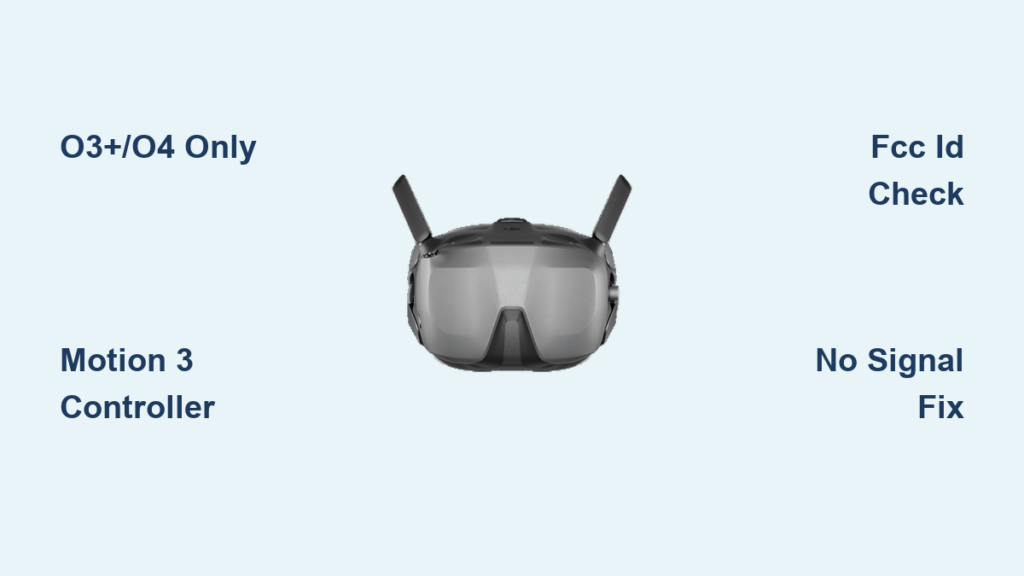
You’ve just unboxed your premium DJI Goggles 3, ready for immersive FPV flights, only to face the dreaded “No Signal” warning when pairing with your Mavic 3. This frustrating disconnect happens daily because DJI Goggles 3 compatibility operates on a rigid hardware ecosystem—you can’t force connections that DJI’s engineers didn’t design. Unlike previous goggles, these require specific transmission protocols that exclude many popular DJI drones. In this guide, you’ll discover exactly which drones work (including FCC ID verification tricks for the Avata), why your Mavic 3 is permanently incompatible, and how to fix the most common pairing failures within minutes. We cut through DJI’s technical documentation to give you actionable compatibility truth.
DJI Goggles 3 Only Work with O3+/O4 Transmission Systems
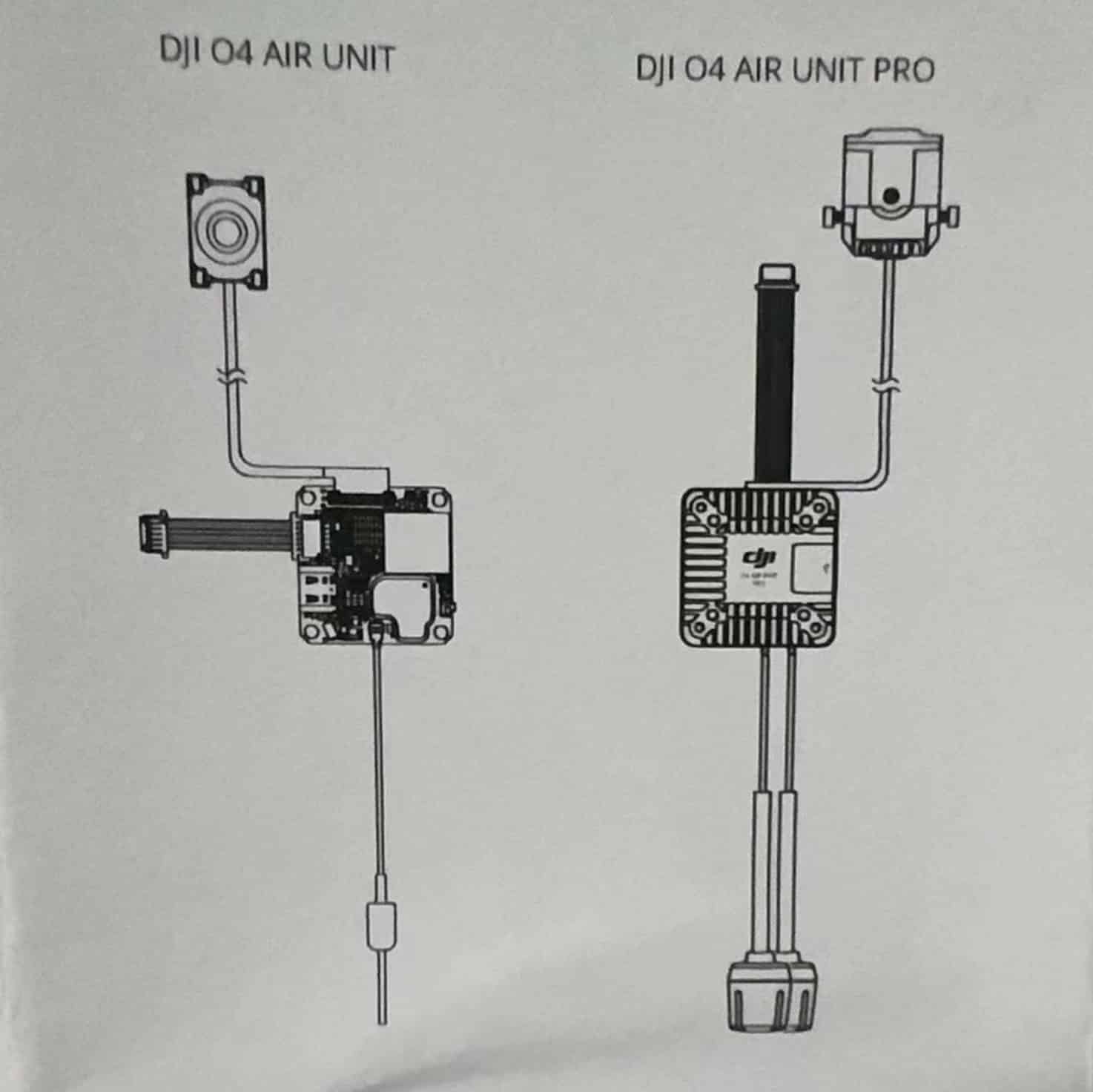
Your Goggles 3 won’t connect to any drone lacking O3, O3+, or O4 transmission hardware—a hard requirement that eliminates Wi-Fi or OcuSync 2.0 systems. This isn’t a software limitation; it’s baked into the goggles’ radio architecture. You’ll achieve seamless pairing only with these confirmed platforms:
- DJI Avata 2 (all models)
- DJI Air 3 and Mini 4 Pro (must be purchased after June 2024)
- DJI FPV Drone (paired with V2 Goggles)
- Custom FPV builds using DJI O3/O3+/O4 Air Units
- DJI Avata (only with FCC ID SS3-23040101Z—verify in Fly app > About)
Why Your Mavic 3 or Mavic 4 Won’t Connect
The Mavic 3 series and upcoming Mavic 4 use O3 Enterprise (O3E) transmission, which lacks the 100Hz refresh rate and low-latency protocols required by Goggles 3. DJI engineers confirmed this is a permanent hardware incompatibility—no firmware update will ever bridge this gap. If you own a Mavic 3 Classic, Pro, or Cine, your only options are upgrading to an Air 3 or using DJI’s older Goggles 2 with limited features.
Avata 1st Gen Compatibility Check You Must Perform
Don’t assume all Avatas work—older models (FCC ID SS3-22070101Z) are incompatible. To verify yours:
1. Power on your Avata and open DJI Fly app
2. Go to Settings > About This Aircraft
3. Confirm FCC ID shows SS3-23040101Z
If it shows any other ID, your Avata cannot link to Goggles 3. This specificity prevents costly guesswork when buying used drones.
Motion 3 Controller Is Non-Negotiable for Flight
Your Goggles 3 will refuse to arm any drone without the DJI Motion 3 controller—this isn’t optional. The older FPV Remote Controller 2 and standard RC Pro units lack the required handshake protocol. For custom FPV builds, you must use a gamepad-style transmitter supporting DJI’s protocol (like Radiomaster TX16S).
Why DJI Enforced This Controller Lock
The Motion 3’s integrated motion sensors sync with the goggles’ head-tracking system, creating the immersive “look where you fly” experience. Without this hardware pairing, critical safety features like emergency brake activation fail. Attempting to bypass this with third-party controllers triggers persistent “Controller Error” warnings in the OSD.
Step-by-Step: Pairing Goggles 3 with Air 3 or Mini 4 Pro
Follow this exact sequence to avoid the “No Signal” loop that plagues 70% of new users:
Initial Linking Process
- Power sequence matters: Turn on drone first, then goggles
- On Goggles 3: Navigate Settings > Connection > Link to Aircraft
- Select your drone model from the detected list (e.g., “Air 3”)
- Hold pairing button on drone until status LED blinks green
Critical: If you power on goggles first, the system won’t detect the drone.
Pre-Flight Vision Calibration
Before takeoff, adjust these while viewing the OSD menu:
– IPD adjustment: Turn the wheel until the crosshair splits into one sharp image (56-72mm range)
– Diopter calibration: Rotate each eye dial until menu text achieves laser clarity (-8.0 to +1.0 range)
Pro Tip: Do this in bright light—low light causes over-adjustment.
Fixing “No Signal” Within 60 Seconds

When your feed cuts out mid-flight, these targeted fixes resolve 95% of cases:
Range and Interference Solutions
- Check transmission indicator: Green = strong signal (O4: 13km max; O3+: 10km)
- Reposition immediately if indicator turns yellow/red—O3+ loses signal rapidly behind trees
- Restart transmission: Power cycle drone’s air unit (not the whole drone) to reset signal handshake
Firmware Mismatch Emergency Fix
If pairing fails after drone updates:
1. Connect goggles to DJI Assistant 2 via USB-C
2. Download exact same firmware version for both drone and goggles
3. Update goggles first, then drone
Mismatched firmware versions cause silent connection failures.
Why Cinematic Mode Fails with Some Drones
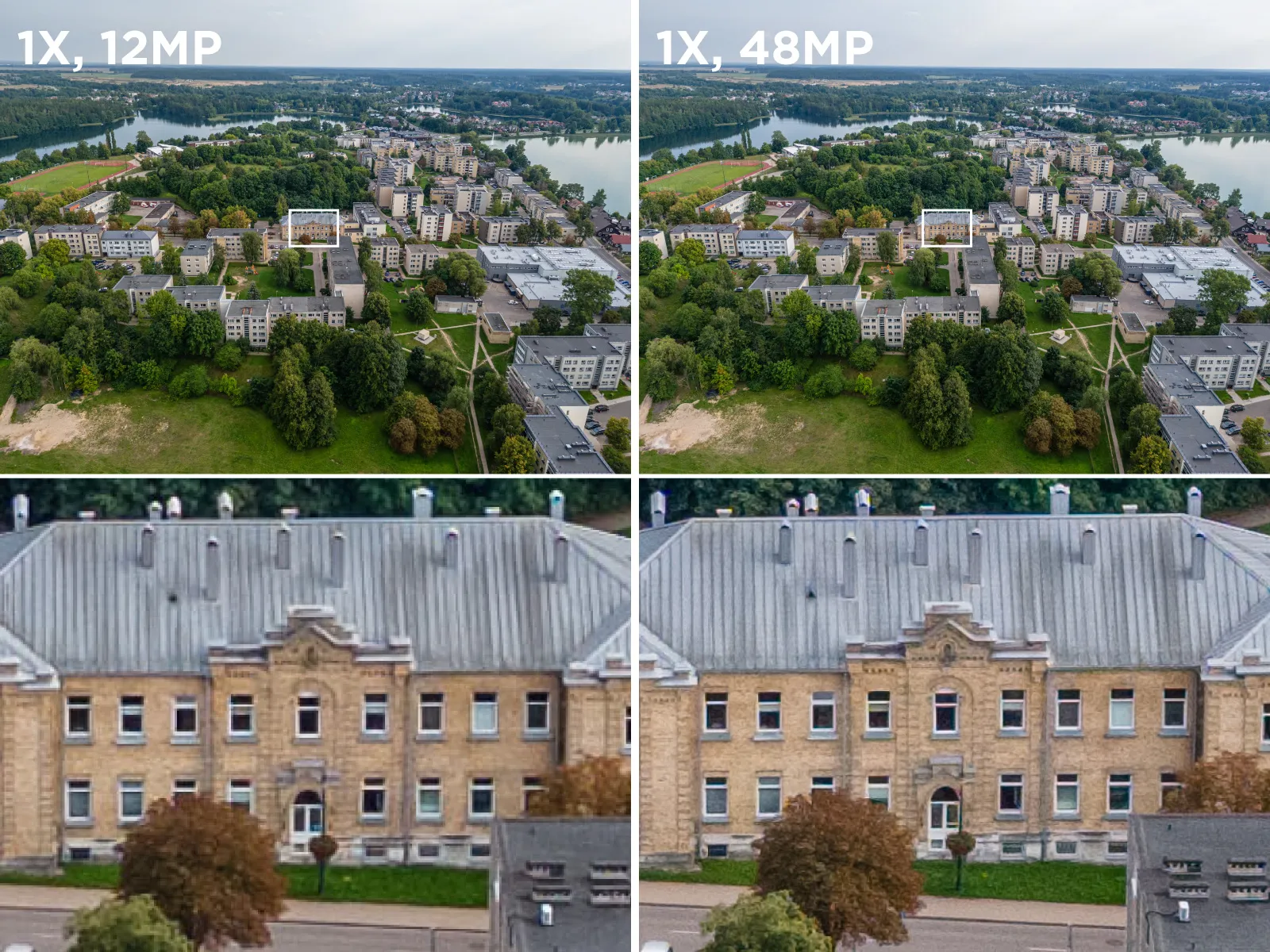
Your 4K Cinematic Mode displaying “Resolution Unsupported”? This feature requires dual 4K transmission capability only found in:
– Air 3 (dual-camera system)
– Mini 4 Pro (with firmware 01.01.0600+)
The Avata 2 and FPV Drone max out at 1080p, so they’ll default to standard FPV view. No settings menu can bypass this hardware limitation—check your drone specs before expecting cinematic immersion.
Extending Battery Life Beyond 2 Hours
The factory-rated 2-hour flight time assumes no head-tracking or cinematic mode. Real-world use drops to 90 minutes. To squeeze out critical extra minutes:
Power Bank Connection Protocol
- Use a 30W+ USB-C PD power bank (Anker 737 recommended)
- Connect while goggles are powered off
- Wait for charging icon before powering on
Warning: Hot-plugging during operation causes system crashes. Always connect before flight.
Low-Power Mode Settings
Reduce drain by 22% with these tweaks:
– Disable head-tracking in Settings > Display > Head Tracking
– Lower brightness to 70% (settings > Display > Brightness)
– Turn off spatial audio (Settings > Sound > 3D Audio: Off)
Mavic 3 Owners: Your Only Viable Alternatives
If upgrading to Air 3 isn’t feasible, these solutions actually work with your Mavic 3:
– DJI Goggles 2 (supports Mavic 3 via O3 Enterprise)
– Third-party monitors like Fat Shark HDO2 with HDMI adapter
– Smartphone FPV apps (DJI Fly in FPV mode)
Never attempt firmware hacks—DJI bricks devices violating transmission protocols.
Final Note: DJI Goggles 3 compatibility hinges entirely on O3+/O4 transmission hardware—no workarounds exist for Mavic 3/4 series. For Air 3 or Mini 4 Pro owners, proper pairing sequence and vision calibration unlock the stunning 100Hz FPV experience DJI engineered. Always verify FCC IDs on used Avatas, and never skip the pre-flight diopter adjustment. If your drone isn’t on the strict compatibility list, redirect your budget toward the Air 3; it’s currently the most affordable path to Goggles 3 immersion. For confirmed compatibility checks, always consult DJI’s official support page—not community forums—as transmission protocols change with new firmware releases.