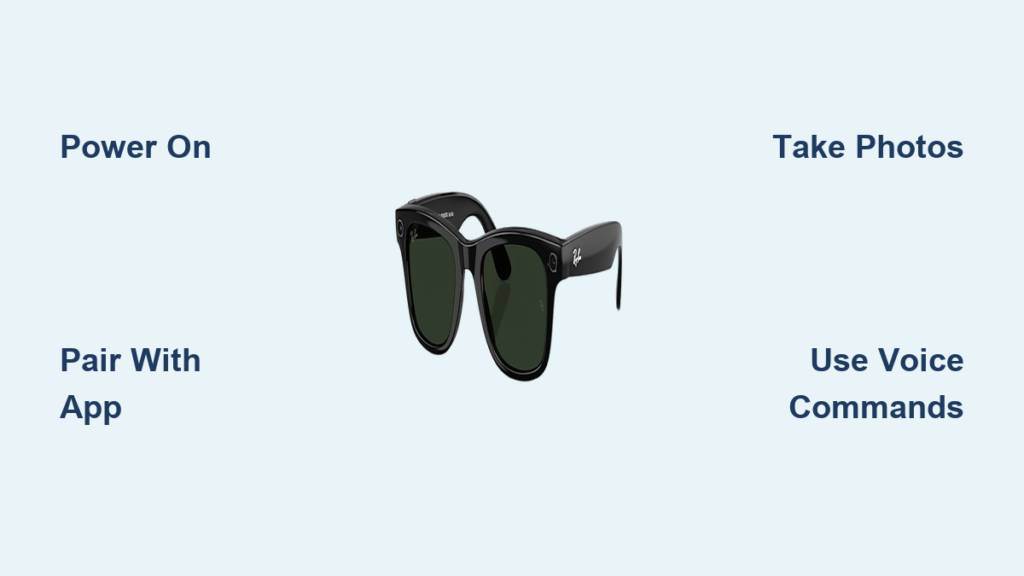
You just unboxed your Ray-Ban Meta Smart Sunglasses. They look sleek, feel lightweight, and hide impressive technology in their transparent arms. But now what? Learning how to use Ray-Ban Meta sunglasses means mastering camera controls, voice commands, app connections, and audio features. This guide walks you through every essential step, from unboxing to capturing hands-free video, streaming live, and activating Meta AI. Whether you’re setting them up for the first time or unlocking advanced features, you will learn exactly how to get the most out of your smart glasses.
By the end of this guide, you will know how to power on your glasses, pair them with your phone, take photos, control music, make calls, and customize every setting to fit your lifestyle.
What’s in the Box: Your Ray-Ban Meta Smart Glasses Kit
Before powering on, inspect what is in the box. Your Ray-Ban Meta Smart Glasses (Gen 2, also called Headliner Edition) come with essential components.
The package includes:
- The smart sunglasses with transparent arms showing internal tech
- A hard charging case with magnetic closure
- Microfiber cleaning cloth
- Getting Started Guide
- Prescription lens information and safety documents
Note: A USB-C cable is not included. You will need your own to charge the case. The case doubles as a portable charger. Use the rear USB-C port to power it up. When closed, the glasses magnetically attach inside and begin charging automatically.
Check Case LED Indicators
The case has LED indicators showing charging status. An orange or yellow light means the case is charging. A green light means the case is fully charged. Remove the protective stickers near the hinges before first use, as they can block sensors and interfere with pairing.
Charge Your Ray-Ban Meta Sunglasses for First Use
Start with a full charge before using your glasses. Connect your USB-C cable to the port on the back of the case. Place the glasses inside, and they will snap into place with magnets.
Monitor Charging Status
On the glasses, a small LED on the left arm pulses while charging and turns solid green when complete. On the case, the front LED glows orange or yellow during charge and switches to green when full. Remove glasses by gently pulling them out. Avoid yanking by the lenses.
Always use a working USB-C cable. Charging failure is often due to faulty cables or power sources. Fully charged, the case provides multiple top-ups. The glasses offer up to four hours of use, varying by feature usage.
Power On Your Ray-Ban Meta and Understand LED Indicators
Locate the power switch on the left arm. Slide it right to turn on. You will hear a chime, and a green light on the right arm will pulse, meaning they are on and ready. Slide the switch left to power off. This disables all functions, including camera, audio, and AI.
Understand Indicator Lights
Pulsing green means powered on and connected. Pulsing blue means Bluetooth pairing mode. Pulsing white means active, whether recording, on a call, or using AI. A red LED on the right arm indicates video recording in progress. A white front LED flashes during recording to notify others. These lights are key for knowing what the glasses are doing, especially the front LED as a built-in privacy feature.
Connect Ray-Ban Meta to the Meta View App
To unlock full functionality, connect your glasses to the Meta View app, called Meta AI in some regions.
Download and Install App
The app is available on iOS App Store and Android Google Play. Search “Meta View” or scan the QR code on the case. Open the app and tap “Get Started.”
Complete Setup Steps
Log in or create a Meta account using Facebook or Instagram credentials. Enable Bluetooth permissions when prompted. Remove the protective tab near the hinge. Power on the glasses. Place glasses in the case. Press and hold the pairing button on the bottom of the case for five seconds until a blue LED pulses. In the app, tap “Add Device” and select Ray-Ban Meta. Tap “Pair” and wait for confirmation.
If pairing fails, ensure Bluetooth is on, the case is not connected to power, and the glasses are powered on and in the case. Once connected, the app will guide you through a firmware update.
Update Ray-Ban Meta Firmware for Best Performance
After pairing, the app checks for updates. Do not skip this step. Updates improve performance, fix bugs, and add features.
Install Update
Tap “Download Update” and then “Install Update.” Keep glasses in the case and do not open it. Wait for completion, which may take several minutes. During the process, you might see a preview of user-generated POV footage.
Enable Auto-Updates
Go to App, Settings, Glasses Update, and toggle “Automatic Updates” ON. This ensures your glasses stay current with the latest features.
Connect to Wi-Fi
For faster updates and AI responses, link to Wi-Fi. Go to Settings, Add Wi-Fi Network, select your network, and enter the password. Wi-Fi enables background syncing and richer AI interactions.
Capture Photos and Video With Ray-Ban Meta
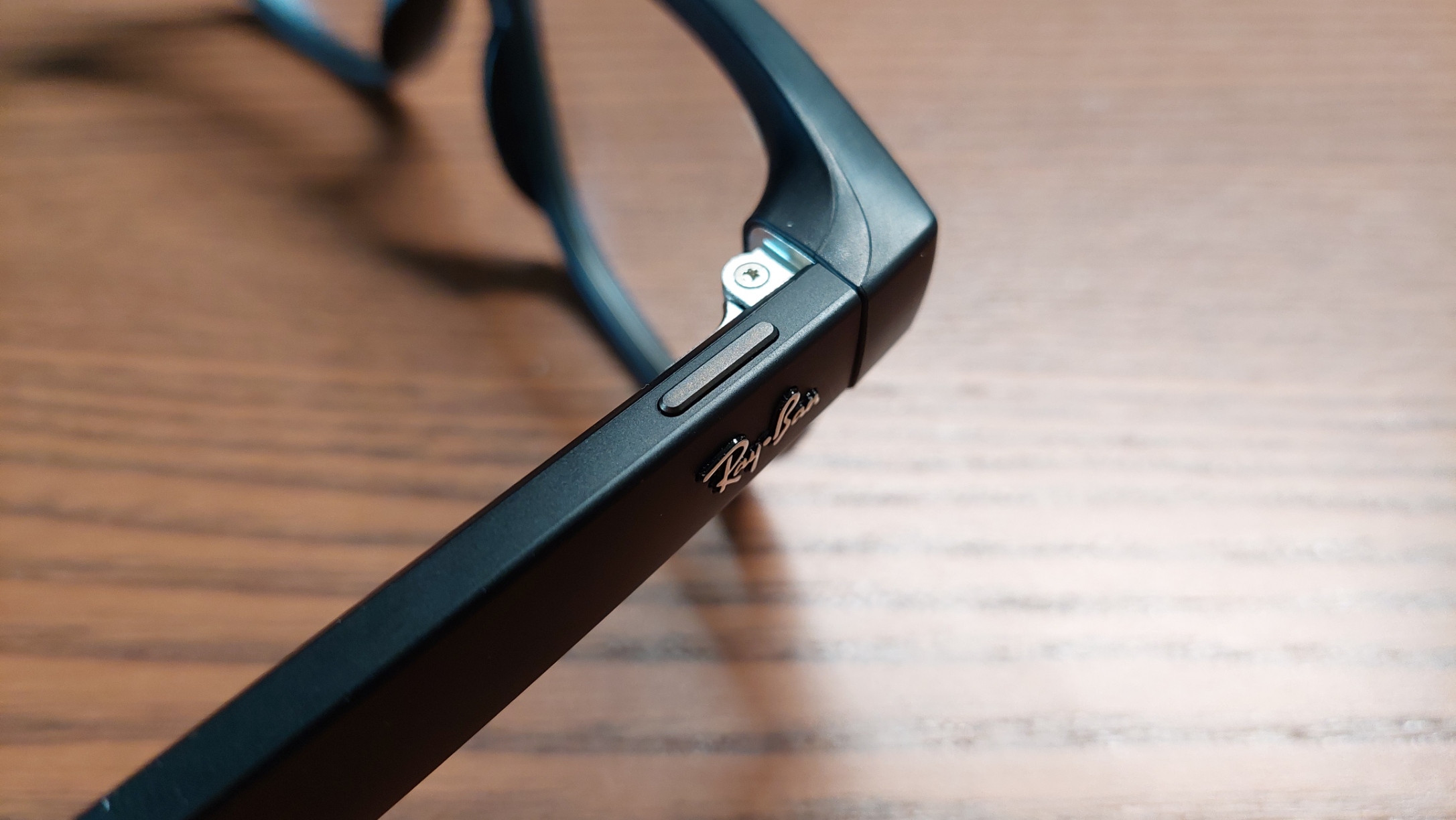
The capture button is on the top of the right arm. Single press takes a photo with a shutter sound. Long press for one second starts video recording. Press again to stop recording.
Adjust Camera Settings in App
Open Media Settings in the Meta View app. Choose between 3K resolution (US only, limited to 3 minutes) or 1080p (30fps, up to 5 minutes). Video stabilization is on by default and recommended for smoother handheld footage.
| Setting | Option |
|---|---|
| Resolution | 3K or 1080p |
| Frame Rate | 30fps |
| Video Stabilization | ON by default |
While recording, a red LED on the right arm stays lit, and the white front LED flashes to inform people around you.
Ideal Use Cases
The wide-angle, portrait-oriented framing is optimized for Instagram Stories, Facebook Reels, YouTube Shorts, and travel vlogs.
Use Meta AI Voice Commands on Your Ray-Ban Meta
Say “Hey Meta” to launch the voice assistant. No button press is needed. The front LED lights up during activation.
Use Voice Commands
Control your day hands-free with these commands. Ask questions like “What’s the weather today?” or “What time is it?” Control media with “Play next song” or “Volume up.” Make calls and messages with “Call Lauren” or “Send a message to Chris: I’m running late.” Use the camera with “Take a photo” or “Start recording video.” Get help with “Find the nearest coffee shop” or “Tell me a poem.”
Customize AI Settings
In the app, you can choose voice selection and language. Enable mobile data for AI use without Wi-Fi. Toggle detailed responses ON for longer answers. Manage voice storage to opt out of Meta storing recordings. You can review all AI interactions in your Activity Log.
Play Music and Control Audio on Ray-Ban Meta
Your Ray-Ban Meta sunglasses double as Bluetooth speakers. Once paired, music, calls, and navigation play through the open-air speakers on both arms. Audio is private, others nearby will not hear clearly.
Use Touchpad Controls
Control playback with the touchpad. Single tap plays or pauses. Double tap skips to the next track. Swipe forward increases volume. Swipe backward decreases volume.
Use Spotify Shortcut
Tap and hold the touchpad for two seconds to play a Spotify-recommended track based on your history. You can customize these gestures in the app if needed.
To switch back to your phone speaker, open Control Center, tap the Bluetooth menu, and select your phone.
Make Hands-Free Calls and Send Messages
Stay connected without touching your phone. The glasses have five embedded microphones for noise cancellation and clear voice pickup.
Set Up Messaging
In the app, go to Call and Message settings. Link your phone for SMS, WhatsApp, and Facebook Messenger. Enable Bluetooth notifications on your phone.
Receive and Respond
Incoming calls and messages are announced aloud. To reply by voice, say “Reply: I’ll be there in 10 minutes.” Turn off notifications in app settings if you want silence during meetings or workouts.
Live Stream From Your Ray-Ban Meta

Share real-time POV content directly to Instagram and Facebook.
Start a Live Stream
Open Instagram or Facebook app. Tap Live mode. Select Ray-Ban Meta as the camera source. Tap Go Live.
Switch Camera Views
While streaming, double-tap the capture button to switch between phone and glasses camera. End the stream from the app. The first-person perspective feels immersive and authentic, perfect for events, sports, or daily vlogs.
Import and Share Your Ray-Ban Meta Media
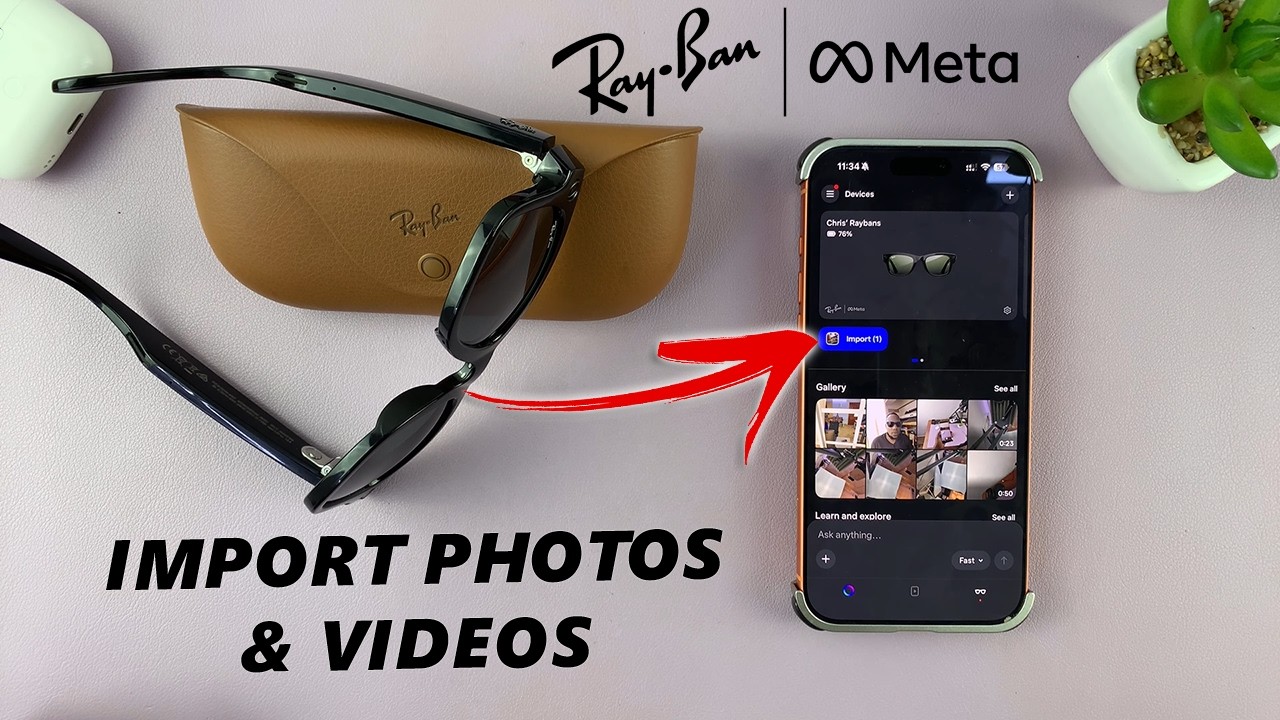
Your photos and videos stay on your phone, not Meta servers, unless you use AI features.
Transfer Files to Phone
In Meta View app, tap Import. The app connects to the glasses Wi-Fi network. Tap Join to start the transfer. If it fails, exit and retry. It usually works on the second attempt.
Access and Share Media
View all imported content in the Media tab. Zoom, organize, or share directly. Files sync to iCloud on iOS or Google Photos on Android. Use the share sheet to post to Instagram Stories, Facebook Stories, WhatsApp, or other platforms. Add stickers, captions, or drawings before posting.
Privacy first: Meta does not access your media unless you enable AI features like transcription or visual recognition.
Manage Privacy and Security Settings
Protect your data and prevent misuse.
Enable Auto-Lock
In Glasses Privacy settings, turn on auto-lock. This prevents unauthorized access if glasses are lost.
Use Find My Device
If you misplace them, open the app, tap Find My Device, and see the last known location and time.
Manage Microphone and Voice
In Settings, Voice Storage, toggle recording and transcript generation on or off. Delete past recordings. Use Activity Log to review all AI interactions.
Try Be My Eyes
This optional paid service connects you with a volunteer using camera and mic for visual assistance, such as reading labels.
Customize Touchpad Controls and Settings
Tailor the experience to your habits.
Change Touchpad Behavior
Default settings include tap for play/pause, double tap for skip, and swipe for volume. You can reprogram gestures in the app under Touchpad Settings.
Adjust LED Brightness
Set notification light brightness to low, medium, high, or use Automatic mode, which is recommended.
Control Adaptive Volume
This feature adjusts volume based on surroundings. Many users turn it off to avoid sudden changes. Toggle it in Settings, Audio, Adaptive Volume.
Clean and Maintain Your Ray-Ban Meta
Keep them working like new.
Daily Care Tips
Wipe lenses with the included microfiber cloth. Clear speaker and microphone holes of dust using a soft brush. Never use liquids, alcohol, or abrasive cleaners.
Handle With Care
Pinch the back of the arms when removing to protect lenses. Always store in the case when not in use.
Monitor Battery Life
Check via the app with real-time percentage. Use voice command: “Hey Meta, what’s my battery level?” Charge the case regularly as your backup power source.
Troubleshoot Common Ray-Ban Meta Issues
Most problems have quick solutions.
Glasses Won’t Pair
Remove the protective tab. Ensure the case is not charging. Hold pairing button for five seconds until blue light pulses. Restart phone Bluetooth.
Import Fails
Retry the Wi-Fi connection. Turn off other Wi-Fi networks temporarily. Restart the app.
No Sound
Check Bluetooth connection. Increase volume on both phone and glasses. Clean speaker slots.
AI Not Responding
Confirm “Hey Meta” is enabled. Check internet connection. Ensure microphone access is granted.
Still stuck? Visit Meta support site or search YouTube for troubleshooting videos.
Pro Tips to Maximize Your Ray-Ban Meta Experience
Get the most from your investment.
Keep firmware updated. New features roll out silently, and auto-updates ensure you do not miss them. Use 1080p for longer clips since 3K looks great but cuts at three minutes. Speak commands clearly, facing forward for best AI results. Stream live often for authentic, immersive content that stands out on social media. Enable mobile data in AI settings for real-time responses away from Wi-Fi. Clean microphones weekly using a dry toothbrush gently to prevent buildup that muffles voice pickup.
Final Thoughts on Using Your Ray-Ban Meta Smart Sunglasses
Your Ray-Ban Meta Smart Sunglasses are more than a fashion statement. They are a powerful tool for capturing moments, staying connected, and interacting with AI hands-free. By mastering the controls, app settings, and privacy options, you turn a stylish accessory into a true digital extension of yourself. The combination of high-quality photo and video capture, hands-free AI assistance, immersive audio playback, and seamless social media integration makes these glasses ideal for creators, travelers, and tech-savvy users.
Now that you know how to use every feature, from taking photos with a tap to live streaming and asking Meta AI for help, you are ready to wear your tech with confidence.
Frequently Asked Questions About Ray-Ban Meta Sunglasses
How do I turn on my Ray-Ban Meta sunglasses?
Locate the power switch on the left arm and slide it right. You will hear a chime, and a green light on the right arm will pulse, confirming they are on.
Does the Ray-Ban Meta case charge the glasses?
Yes, the case is a charging case. Place the glasses inside, and they magnetically attach and begin charging automatically.
How do I take a photo with Ray-Ban Meta?
Press the capture button on the top of the right arm once. You will hear a shutter sound confirming the photo was taken.
Can I use Ray-Ban Meta without the app?
Basic functions like power and camera capture work without the app, but full functionality, including AI features, music control, and media management, requires the Meta View app.
How long does the battery last on Ray-Ban Meta glasses?
The glasses offer up to four hours of use, varying by feature usage. The case provides multiple full charges for on-the-go power.
How do I activate Meta AI on my glasses?
Say “Hey Meta” to activate the voice assistant. No button press is needed. You can then ask questions, control media, make calls, or use camera functions hands-free.