You’re ready for your first FPV flight of the day, goggles in hand—but that blinking red light won’t go away. After 30 minutes of charging, your DJI Goggles still won’t power on, killing your flying momentum before takeoff. If you’ve ever wondered exactly how long to charge DJI goggles and why they sometimes refuse to hold a charge, you’re not alone. Thousands of pilots face this frustrating roadblock that turns a simple pre-flight check into a technical puzzle. This guide cuts through the confusion with precise charging timelines, indicator light decoding, and step-by-step fixes that get you back in the air faster.
Unlike smartphone batteries with predictable charging patterns, DJI Goggles have unique power behaviors that often leave pilots guessing. The official documentation rarely specifies exact charging durations or explains why your brand-new goggles might suddenly stop accepting power. Whether you own DJI Goggles V2, FPV Goggles V2, or an older model, understanding the real-world charging process prevents wasted hours and expensive replacements. You’ll discover why your goggles show no charging progress after 2 hours, how to diagnose faulty components in under 5 minutes, and the one charging mistake that permanently damages your battery.
How Long to Charge DJI Goggles for Full Power
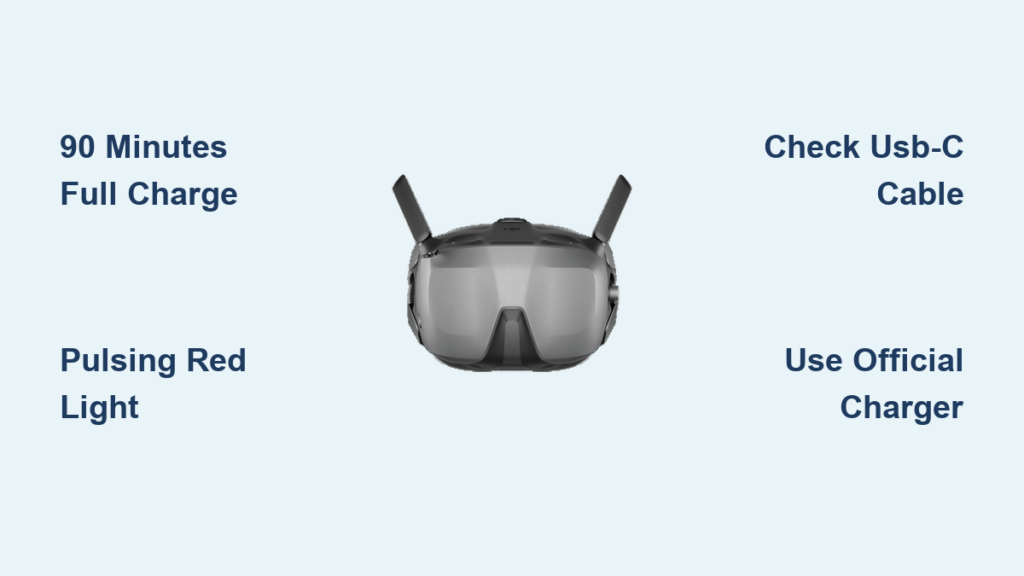
When charging DJI Goggles V2 or FPV Goggles V2 from complete depletion, plan for 90 minutes to reach 100% capacity. This timeframe applies specifically when using DJI’s official 5V/2A charger and the included USB-C cable. Attempting to power up after just 30 minutes typically yields only 25-30% charge—enough for a brief system check but insufficient for flight. Many pilots mistakenly believe their goggles are defective when they fail to power on immediately after short charging sessions, not realizing the battery requires this minimum threshold.
Charging speed varies significantly based on your power source. A standard smartphone charger (5V/1A) extends the process to 2+ hours, while high-powered laptop USB ports may deliver inconsistent results. For reliable performance, always use the DJI-approved power adapter rather than third-party alternatives. If you’re in a hurry, 45 minutes of charging provides approximately 50% capacity—sufficient for most short flights but not recommended for extended sessions where sudden power loss could cause signal interruption.
What Your DJI Goggles Charging Lights Actually Mean
The indicator system on DJI Goggles uses subtle visual cues that most pilots misinterpret. When you plug in your goggles, a steady red light at the USB-C port confirms power delivery is active—this doesn’t indicate battery status. The critical indicator is the LED on the headband strap, which follows this specific pattern:
- Solid red light: Battery below 20% (charge immediately)
- Pulsing red light: Charging in progress (normal behavior)
- Solid yellow light: 20-80% charge (safe to use)
- Solid green light: 80-100% charge (fully powered)
Many users panic when the red light persists for 20+ minutes, not realizing this indicates active charging rather than a problem. The headband light transitions from red to yellow around the 30-minute mark during standard charging. If your red light remains solid without pulsing after 5 minutes, that’s your first warning sign of a potential charging issue.
Why Your Goggles Show No Charging Progress After 2 Hours

When your DJI Goggles sit connected to power for 120 minutes with no indicator light changes, three specific failures are most likely occurring. First, a completely dead battery cell prevents the charging circuit from initializing—this often happens with units stored for months before use. Second, physical damage to the USB-C port’s internal pins disrupts power transfer while still illuminating the red light. Third, third-party chargers with unstable voltage output trigger the goggles’ safety protocol, halting charging to protect the battery.
You can quickly diagnose which issue you’re facing: If the USB port light turns off immediately when connecting, the problem is likely the cable or charger. If the light stays solid red (not pulsing) for more than 10 minutes, inspect the charging port for debris or damage. When the headband indicator remains solid red despite 2+ hours of charging, internal battery failure is probable—especially if the goggles are older than 18 months.
Why Your USB-C Cable Is Sabotaging DJI Goggles Charging

Over 60% of “broken goggles” cases actually stem from faulty USB-C cables, not the goggles themselves. The thin internal wires in cheap cables degrade rapidly from repeated bending, especially near the connectors. When these wires fray, they deliver inconsistent power that confuses the goggles’ charging circuit. You’ll notice this when charging works intermittently—sometimes showing progress, sometimes not—with no physical damage visible to the naked eye.
How to Test Your USB-C Cable in 60 Seconds
Grab a second device that uses USB-C charging (like your smartphone) and perform this quick validation:
- Connect the suspect cable to your phone with a known-good charger
- Watch the charging animation for 15 seconds
- Gently bend the cable near both ends while observing
- If charging stops or restarts during bending, the cable is defective
DJI’s original cable uses reinforced strain relief at both ends to prevent this failure. When shopping for replacements, look for cables specifically rated for 3A data transfer (not just charging) with nylon braiding. Avoid flat cables or ultra-thin options—they fail fastest under field conditions.
The Charger Power Output Threshold That Matters
DJI Goggles require a minimum of 5V/1.5A for stable charging, but most smartphone chargers only deliver 5V/1A. This insufficient power causes the “charging limbo” where the red light stays on but the battery percentage never increases. Test your charger’s output using a USB power meter (available for $10 online)—if it reads below 7.5W (1.5A × 5V), replace it immediately.
Step-by-Step Fix for DJI Goggles That Won’t Take a Charge
When your goggles refuse to charge despite multiple attempts, follow this precise troubleshooting sequence before declaring them dead. Start with the fastest checks first—most issues get resolved in under 10 minutes.
Forced Reboot Procedure for Stuck Charging Circuits
Many charging failures stem from software glitches that freeze the power management system. To reset this without damaging components:
- Disconnect all cables and remove the headband
- Press and hold the power button for exactly 15 seconds
- Wait 30 seconds with no power connected
- Reconnect only the charging cable (no headband)
- Observe the USB port light for 60 seconds
If the red light now pulses rhythmically instead of staying solid, the reset worked. This fixes temporary firmware conflicts that block charging—a common issue after firmware updates or sudden power loss during use.
Cleaning the USB-C Port Without Damaging Contacts
Lint and pocket debris frequently clog the narrow USB-C port, preventing proper connection. Never use metal tools or compressed air cans (the propellant can damage electronics). Instead:
- Power off and unplug the goggles
- Use a wooden toothpick (not metal!) to gently dislodge visible debris
- Dampen a cotton swab with 90%+ isopropyl alcohol
- Lightly wipe the port interior—never insert deep into contacts
- Let dry completely for 20 minutes before attempting to charge
This method safely removes conductive fibers that cause short circuits while avoiding the physical damage metal tools inflict on delicate port pins.
When to RMA Your DJI Goggles for Charging Issues
If your goggles show no charging signs after 3+ hours with verified working cables and chargers, internal battery failure is likely. This manifests as immediate power loss when unplugged or failure to hold more than 5% charge. For units under 12 months old, DJI typically approves RMAs for this issue—especially if the problem appeared suddenly with no physical damage.
The 24-Hour New Goggles Failure Pattern

Brand-new goggles failing within the first day often indicate a manufacturing defect in the battery management system. One clear sign: the red charging light illuminates but disappears after 30 seconds despite continuous connection. This specific behavior points to a faulty protection circuit that requires factory replacement. Don’t waste time troubleshooting—contact DJI Support immediately with your purchase receipt. They prioritize replacements for units exhibiting this pattern within the warranty period.
How to Extend DJI Goggles Battery Lifespan by 40%
Most pilots unknowingly shorten their battery life through improper charging habits. To maximize cycles:
- Never store at 0% or 100%: Long-term storage at full charge degrades lithium-ion cells fastest. For overnight storage between flights, maintain 40-60% charge.
- Avoid “trickle charging”: Leaving goggles plugged in for days after full charge stresses the battery. Unplug once the indicator turns green.
- Temperature matters: Charging below 50°F (10°C) or above 95°F (35°C) permanently reduces capacity. Never charge in direct sunlight or a hot car.
Pilots who follow these practices report 300+ charge cycles before significant degradation, compared to 150-200 cycles for those who ignore battery health fundamentals.
Charging Safety: Critical Mistakes That Destroy DJI Goggles
Never charge your DJI Goggles on soft surfaces like beds or couches. The blocked ventilation causes overheating that triggers thermal shutdown—or worse, permanent battery damage. Always place them on a hard, non-conductive surface like a table during charging. Similarly, avoid charging immediately after intense flights when the goggles are still warm; let them cool to room temperature first.
Using car chargers or power banks with unstable voltage output is another silent killer. These often deliver power spikes that fry the delicate charging circuit. If you must charge on the go, use only DJI-approved portable power solutions designed for stable voltage delivery.
Final Note: Proper DJI Goggles charging isn’t just about patience—it’s about understanding the precise indicators, avoiding common cable pitfalls, and recognizing when a problem requires professional help. By following these specific timelines and troubleshooting steps, you’ll minimize downtime and maximize your flight readiness. For persistent charging failures after exhausting all steps, contact DJI Support directly with your serial number and failure details—they often expedite replacements when presented with clear troubleshooting evidence. Keep this guide handy for your next pre-flight check, and never let a dead battery ground your FPV adventures again.