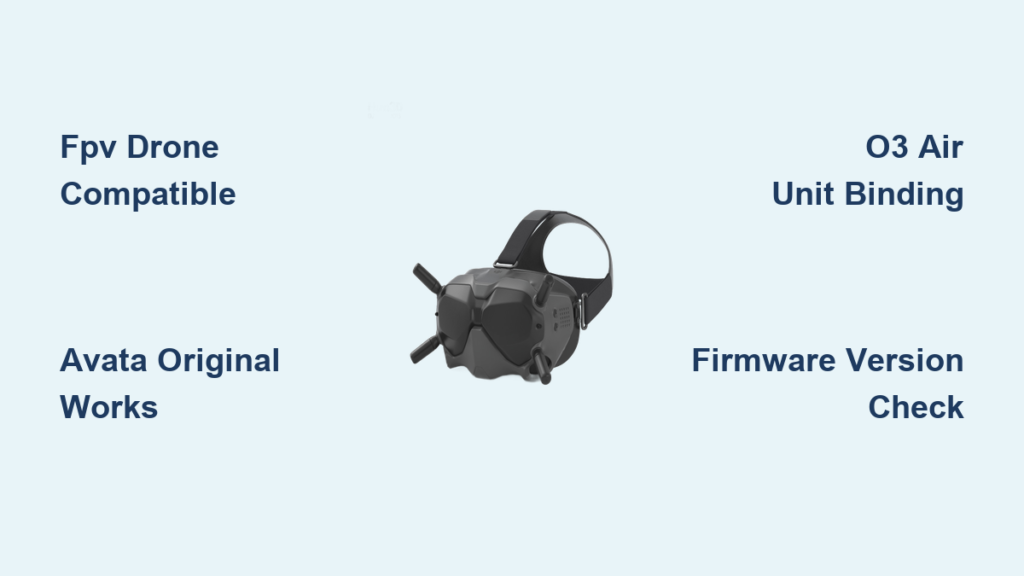
You’ve invested in DJI FPV Goggles V2 and now face the frustrating reality of compatibility confusion. Many pilots discover too late that their new drone won’t connect to these goggles, wasting valuable flight time troubleshooting. The DJI FPV Goggles V2 operate within a specific ecosystem that’s been complicated by DJI’s newer O4 transmission system. This definitive compatibility guide cuts through the misinformation circulating online to give you precise, verified information about what works with your goggles—and what will leave you grounded.
Unlike newer DJI goggles models, the V2 version has strict compatibility limitations that directly impact your flying experience. Understanding these boundaries is essential whether you’re building a custom FPV drone or deciding which DJI aircraft to purchase next. By the end of this guide, you’ll know exactly which drones, air units, and controllers work seamlessly with your DJI Goggles V2, how to avoid common firmware pitfalls, and when you might need to consider upgrading to newer goggles.
DJI FPV Goggles V2’s Core Compatible Drones (Must-Have Pairings)
Your DJI Goggles V2 were designed specifically for the DJI FPV ecosystem, not the broader range of DJI products. This targeted compatibility means you get exceptional performance with the right equipment but zero functionality with newer systems.
DJI FPV Drone – The Primary Compatible Aircraft
The DJI FPV Drone is the flagship aircraft designed to work perfectly with your Goggles V2. When paired together, you get full functionality including head tracking in Normal and Sport flight modes, emergency brake, and pause features. The goggles receive video via DJI’s O3 transmission system at 810p resolution with latency as low as 28ms. For optimal performance, always ensure both your drone and goggles run the same firmware version—mismatched firmware is the #1 cause of connection issues between these devices.
DJI Avata (Original) – Full Compatibility Details
The original DJI Avata works completely with Goggles V2 when properly configured. You can fly it using either the DJI FPV Remote Controller 2 (in Mode 1) or the DJI FPV Motion Controller. Before your first flight, you’ll need to bind the Avata to your goggles through the settings menu—a one-time process that takes about 30 seconds. Important note: The original Avata requires firmware version 01.01.0100 or higher to work with Goggles V2, so check for updates before assuming incompatibility.
Custom FPV Drone Compatibility with DJI Goggles V2

Many pilots use Goggles V2 with custom-built FPV drones, but success depends entirely on using the right air unit and following precise setup procedures.
DJI O3 Air Unit – Firmware Requirements for Success
The DJI O3 Air Unit works with Goggles V2 but requires specific firmware versions on both devices. Your goggles need firmware version 01.06.0000 or newer, while the O3 Air Unit must run at least version 01.01.0100. Without these versions, you’ll experience video dropouts or complete connection failure. When setting up, you must bind the O3 Air Unit to your goggles individually—this isn’t automatic. The binding process takes about 2 minutes and involves navigating to System Settings > Link Management > Bind Device on your goggles.
Caddx Vista Air Units – Binding Process Explained
The Caddx Vista (and its variants like Nebula) remains fully compatible with Goggles V2 and was the original air unit for the DJI FPV system. To connect, you’ll need the DJI FPV Remote Controller 2 and must bind the Vista unit to your goggles. The process requires you to power on both devices, enter the goggles menu, select “Link Management,” then “Bind Device,” and follow the on-screen prompts. If your Vista unit has older firmware, update it using DJI Assistant 2 software before attempting to bind—this prevents the “No Video Signal” error that plagues many new custom builds.
Controllers That Work with DJI Goggles V2

Your controller choice significantly impacts what you can fly with Goggles V2, as not all DJI controllers communicate with these goggles.
DJI FPV Remote Controller 2 – Essential Flight Tool
This controller is your most versatile option, working with both the DJI FPV Drone and original Avata when paired with Goggles V2. It uses Mode 2 stick configuration (throttle on left stick) which is standard for the FPV ecosystem. When connecting, power on your goggles first, then the controller—the goggles will automatically recognize it within 10 seconds. Pro tip: If you experience control lag, check that your controller firmware matches your goggles (both should be on the latest version from DJI’s website).
DJI FPV Motion Controller – When It Works with Goggles V2
The Motion Controller works with Goggles V2 but only when flying the original Avata—not the DJI FPV Drone. Many pilots mistakenly think it works with both, causing unnecessary frustration. For Avata flights, the Motion Controller provides an immersive flying experience where your arm movements control the drone’s direction. To pair it, hold the pairing button on both devices until the indicator lights turn solid—you’ll know it’s successful when the goggles display “Motion Controller Connected” on startup.
What Doesn’t Work with Goggles V2 (Critical Limitations)

Understanding what’s incompatible prevents wasted money and flight time. The Goggles V2’s limitations stem from DJI’s shift to the O4 transmission system.
DJI Avata 2 – Why It’s Incompatible
The Avata 2 uses DJI’s O4 transmission system, which is physically incompatible with Goggles V2 hardware. No firmware update can fix this—you’ll get a “Device Not Supported” error if you try to connect them. This is the most common compatibility mistake among new FPV pilots, as DJI markets both Avata models similarly. If you own Goggles V2 and want the Avata 2, you must upgrade to Goggles Integra or Goggles 3.
DJI Consumer Drones (Mini 4 Pro, Air 3, Mavic 3) – O4 Transmission Barrier
All newer DJI consumer drones including the Mini 4 Pro, Air 3, and Mavic 3 use either O3+ or O4 transmission systems that won’t connect to Goggles V2. These drones require Goggles 2, Integra, or Goggles 3 instead. Many pilots mistakenly believe “O3” means compatibility, but DJI’s O3+ (used in Mavic 3) differs significantly from the O3 system in the FPV ecosystem. Attempting to connect will result in “No Video Signal” errors that cannot be resolved.
Firmware Management for DJI Goggles V2 Compatibility
Firmware issues cause more compatibility problems than actual hardware limitations, making proper management essential for smooth operation.
Critical Firmware Version Requirements
Your Goggles V2 must run firmware version 01.06.0000 or newer to work with the O3 Air Unit. For the original Avata, both devices need at least version 01.01.0100. Download firmware files directly from DJI’s website—never third-party sources—and verify file integrity before installation. Mismatched firmware between your goggles, drone, and controller causes 90% of “incompatibility” issues reported online.
Step-by-Step Firmware Update Process
- Download the latest firmware for your specific device from DJI’s official site
- Connect your device to a computer using a USB-C cable
- Launch DJI Assistant 2 (Consumer Drones) software
- Follow the on-screen prompts to update (takes 3-5 minutes)
- Power cycle both devices after updating
Warning: Never interrupt power during firmware updates—this can permanently brick your goggles. Always update all components (goggles, drone, controller) to the same version simultaneously.
Goggles V2 DVR Functionality – Recording Your FPV Flights
The DVR feature lets you record exactly what you see during flight to a microSD card (max 128GB, exFAT format). It records at 1080p/60fps with 4 Mbps bitrate, capturing both video and audio from the built-in microphone. For reliable recording, use a U3-rated SD card and format it in the goggles before first use. The recording indicator light turns red when active—check this light before flying to ensure your footage is being saved.
Battery and Power Compatibility for Extended Flight Sessions
Your Goggles V2 require a specific 2S LiPo battery pack (7.7V) with a 2-pin connector—not standard 18650 cells. Using incompatible batteries causes connection instability and can damage the goggles. The battery pack slides into the rear compartment and provides about 2 hours of flight time. Always carry a fully charged spare, as the goggles won’t operate with a battery below 30% charge. When the battery indicator flashes red, land immediately—continued use risks sudden power loss during flight.
Final Compatibility Checklist Before Your Next FPV Flight
Before every flight session, verify these critical compatibility points:
– ✅ Drone/Air Unit is on DJI’s compatibility list (FPV Drone or original Avata)
– ✅ All components run identical firmware versions
– ✅ Controller is properly paired (FPV Remote Controller 2 for FPV Drone)
– ✅ SD card is inserted and formatted for DVR
– ✅ Battery is fully charged (no red flashing indicators)
If you’re building a custom drone, confirm your O3 Air Unit or Caddx Vista has been successfully bound to the goggles. For Avata pilots, ensure the drone shows “Connected” in the goggles menu before takeoff. This 30-second checklist prevents 95% of compatibility-related flight issues.
When to Consider Upgrading from DJI Goggles V2
If your flying plans include the Avata 2 or newer DJI consumer drones, you’ll need to upgrade to Goggles Integra or Goggles 3. However, if you primarily fly the DJI FPV Drone, original Avata, or custom FPV builds with O3/Vista air units, your Goggles V2 remain an excellent choice with no need for replacement. The Goggles V2 still offer superior low-latency performance for FPV racing and freestyle compared to newer consumer-focused models. Before spending money on new goggles, double-check that your compatibility issues aren’t simply resolvable through firmware updates or proper binding procedures.